
Unlock this and dozens of other powerful features by upgrading to EngageBox Pro.
Unlock this feature
 Tassos Docs
EngageBox
v7.1.4
-
- AcyMailing
- Browser
- City
- Component Condition
- Continent Condition
- Convert Forms Conditions
- Cookie Condition
- Country Condition
- Date Condition
- Day of Week
- Device Condition
- Display Conditions
- E-Commerce Conditions (VirtueMart - HikaShop)
- EngageBox - Viewed Another Popup Condition
- Homepage
- IP Address Condition
- Joomla! Content Article Condition
- Joomla! Content Category Condition
- Joomla! Content Component View Condition
- K2 Category
- K2 Item
- K2 Page Type
- K2 Tag
- Language
- Menu Item
- Month
- New/Returning Visitor Condition
- Operating System
- Pageviews Condition
- PHP
- Referrer URL Condition
- Region
- Time on Site
- Time Range
- Trigger based on URL match
- URL Condition
- User Access Level Condition
- User Condition
- User Group
-
- Show a Floating Button After Popup is Closed
- Create Multilingual Popups
- Randomly Rotate Popups on a Page
- Αdd Sound Effects to Popup
- Make Accessible Popups
- Add Countdown Timer to Popup
- Limit impressions per unique visitor
- Test the responsiveness of your boxes for various devices and viewports
- Open a box by clicking on a menu item
- Trigger based on the minimum time visitor spent on the site
- Auto-Close Popup After a Specific Time
- Control Popup using HTML Attributes
Convert Forms Integration
Display contact forms in a popup in Joomla. Integrate with Convert Forms to create lead generation popups.
Convert Forms Integration is available in Pro
In this article you will learn how to display a form created with Convert Forms in a popup using EngageBox.
1. Using Convert Forms shortcode
First of all, we need to find the shortcode of the Convert Form we're going to use. Let's see how to do that.
- Go to Components → Convert Forms → Forms
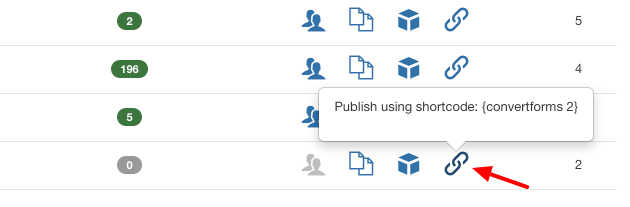
- While you are on the list view of your forms, find the form you are interested in and click the link icon in the form's row to copy its shortcode to your clipboard. See the screenshot below.
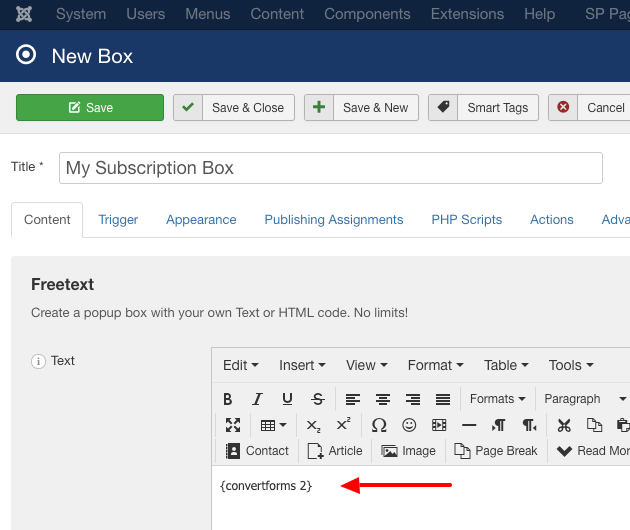
Now that we have the shortcode all that's left is to paste the shortcode into the editor on the Content tab of your popup like it is depicted in the screenshot below and save it! That's it!
2. Using Convert Forms module
It is assumed that you have already published the module of the Convert Form you're interested in. If not, then first take a look at our How to display a form on the frontend documentation to learn exactly how to do that.
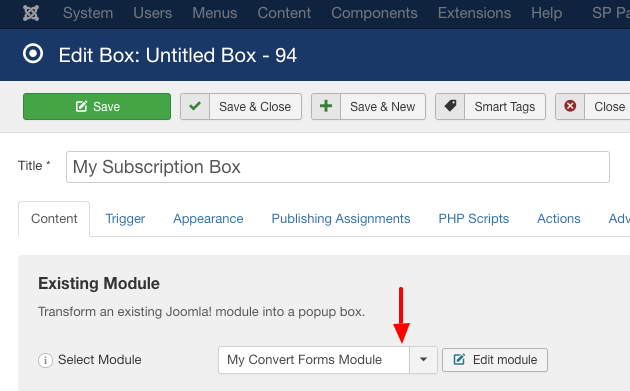
Using a module of Convert Forms inside an EngageBox popup does not differ in any way than any other conventional module. As seen in the screenshot above, just set Box Type in the right sidebar to Existing Module, then select your Convert Forms module in Select Module on the Content tab. That's it!
Auto-Close Popup After Form Submission
If we'd like to auto-close the popup after a successful form submission, we'll need to use a small JavaScript snippet that closes the pop-up after the "success" event of the form is triggered.
Edit your popup, go to the Actions tab and click Add Action. On Event and Action select After Open and Run Javascript respectively, and enter the code below:
var form = me.el.querySelector('.convertforms');
form.addEventListener('success', () => {
    me.close();
});
If you'd like to add a delay, use the following Javascript snippet instead:
var form = me.el.querySelector('.convertforms');
form.addEventListener('success', () => {
    setTimeout(function() {
        me.close();
    }, 3000);
});
This will close the popup 3 seconds (3000 milliseconds) after the form has been submitted. Adjust the delay as desired.
The script above utilizes the JavaScript Events API, which is available for both Convert Forms and EngageBox extensions.
Hide popup for session after form submission
If you want to hide the popup as long as the session lasts and only after the form has been successfully submitted, place the following code into the Custom JavaScript option in the Advanced tab of your popup.
EngageBox.onReady(function() {
	let popup = EngageBox.getInstance({eb.id});
	var form = popup.el.querySelector('.convertforms');
	form.addEventListener('success', (event) => {
		document.cookie = "engagebox_{eb.id}=true; path=/";
	});
});
If you would like to also auto-close the popup, use this snippet instead:
EngageBox.onReady(function() {
	let popup = EngageBox.getInstance({eb.id});
	var form = popup.el.querySelector('.convertforms');
	form.addEventListener('success', (event) => {
		document.cookie = "engagebox_{eb.id}=true; path=/";
		popup.close();
	});
});
Convert Forms Integration is available in Pro
Unlock this and dozens of other powerful features by upgrading to EngageBox Pro.
Unlock this feature
Last updated on Oct 15th 2026 17:10

The #1 Joomla Popup Builder Extension
Create smart popups, sticky bars, fullscreen messages and floating buttons. Convert your traffic into customers and subscribers.

Tassos offers a premium suite of Joomla extensions with 7 products and over 2.4 million downloads, providing reliable solutions since 2014.


 Rated:
Copyright © 2014 - 2026 - Smile Motive Development LP. All Rights Reserved.